How to Launch a Restaurant Website in a Weekend: Menus, Online Ordering, and Google Maps
webceke
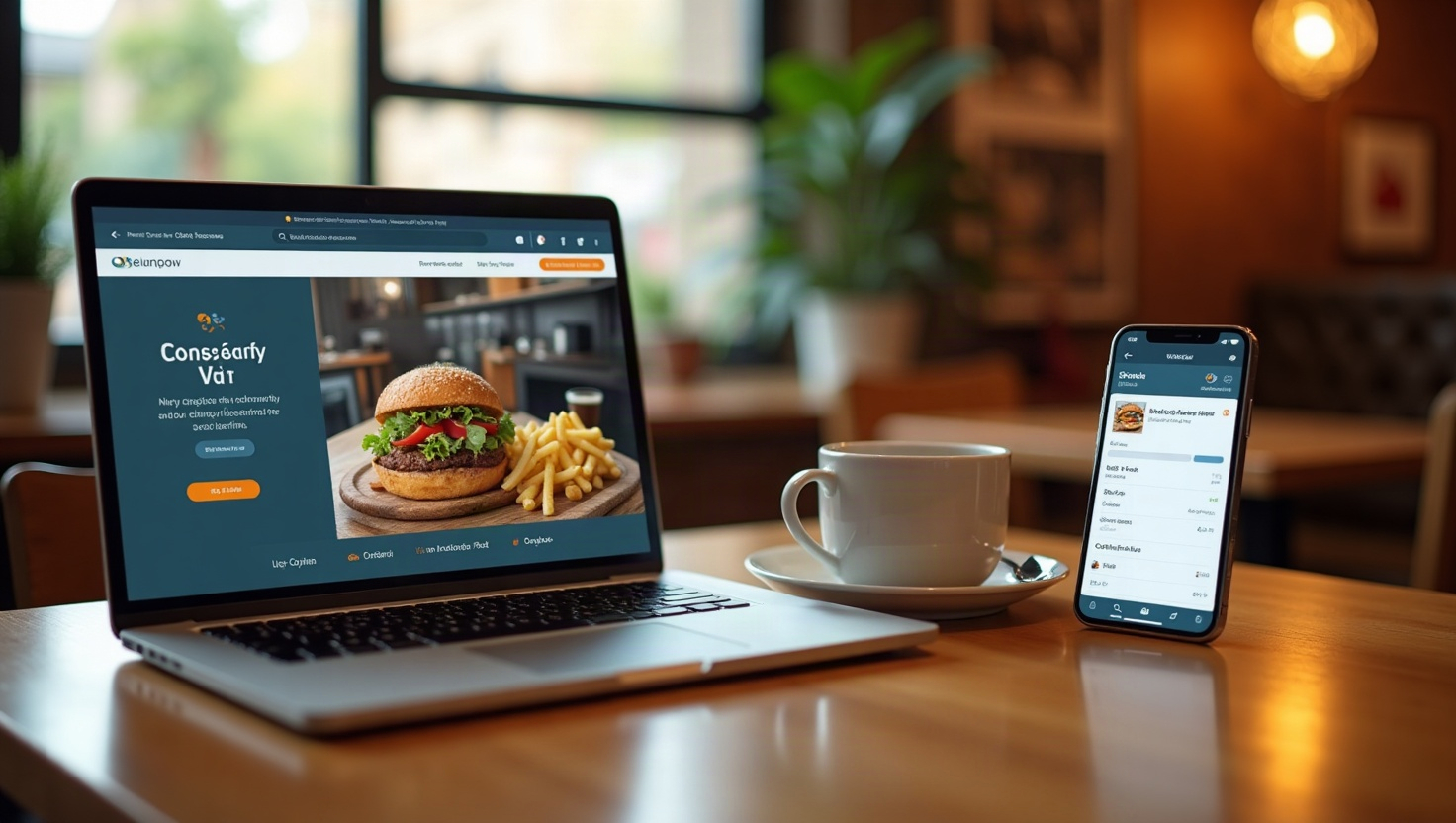
You don't need a developer or a big budget to get your restaurant online. With a modern AI website builder, you can launch a polished, functional site in a single weekend. This guide walks you through the exact steps to showcase your menu, accept online orders, and appear on Google Maps—so local diners can find you and order without friction.
Why Your Restaurant Needs a Website This Weekend
A social media page isn't enough. When someone searches for "best pizza near me" or "Thai food open now," they expect a website with your hours, location, and menu. A dedicated site builds trust, boosts local SEO, and gives you full control over your brand. Plus, with an AI builder, you can create it in hours—not weeks.
Step 1: Choose a Restaurant Website Builder with Online Ordering
Not all website builders are equal. You need one that includes online ordering out of the box. A restaurant website builder with online ordering lets you add a menu, set prices, and accept payments without juggling third-party plugins. Look for features like:
- Menu display with categories and photos
- Order buttons that link to your own checkout or a delivery partner
- Mobile-friendly design (most orders come from phones)
- Integration with payment gateways like Stripe or PayPal
Tools like webceke automatically generate a site from a simple description, so you can skip the drag-and-drop marathon.
Step 2: Showcase Your Menu Like a Pro
Your menu is your best salesperson. Make it easy to read and impossible to resist.
- Use high-quality photos—even smartphone shots with good lighting work.
- Organize by category (appetizers, mains, desserts, drinks) with clear descriptions.
- Highlight signature dishes and daily specials.
- Include prices, allergens, and dietary tags (vegan, gluten-free).
With an AI builder, you can paste your existing menu text, and the tool will format it into a clean, searchable page. Update it anytime—no waiting for a developer.
Step 3: Set Up Online Ordering in Three Clicks
Online ordering isn't just for big chains. Even a food truck can benefit. Here's how to integrate it:
- Choose your ordering method: either direct (customers pay on your site) or redirect to a delivery app (Uber Eats, DoorDash).
- Add your menu items with prices and options (size, add-ons, spice level).
- Set pickup or delivery hours and connect your payment processor.
Many AI builders include pre-built ordering blocks. In webceke, you just describe your business (e.g., "family-owned taco truck with online ordering"), and the site generates a fully functional order page. Test it with a friend before going live.
Step 4: Get Found on Google Maps
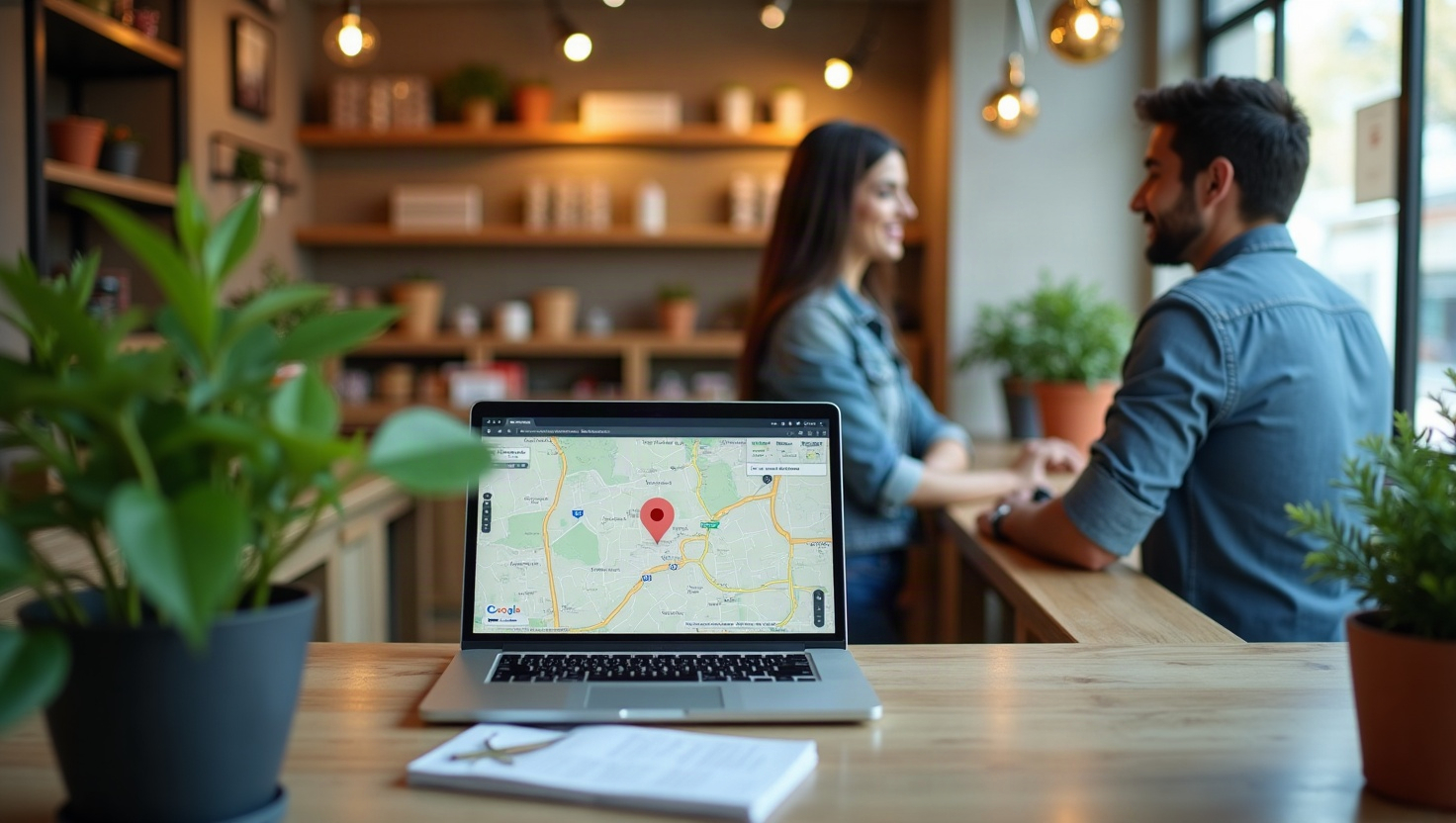
Local discovery is everything. If someone searches for "cafes near me," you want to be on that map. Here's what to do:
- Create or claim your Google Business Profile—it's free and essential.
- Embed a Google Map on your website's contact page. Most builders let you add a map block with your address.
- Keep your NAP (Name, Address, Phone) consistent across your site and listings.
- Add local keywords to your homepage, like "downtown Austin coffee" or "beachside seafood in San Diego."
A map embed also shows customers exactly where you are, reducing "where are you?" calls.
Step 5: Turn Visitors into Diners with Smart CTAs
Your site should guide visitors to act. Use clear calls-to-action (CTAs) above the fold:
- "Order Online" (primary)
- "View Menu"
- "Get Directions"
- "Reserve a Table" (if applicable)
Place these buttons on every page. Also add a sticky mobile menu bar so the order button is always visible. Test on your phone—if it takes more than two taps to order, simplify.
Keeping Your Menu Updated (Without Tears)
Outdated menus frustrate customers and hurt trust. With an AI builder, updates take seconds:
- Log in and edit the menu page directly—no coding.
- Change prices or items as seasons change.
- Add a 'Today's Specials' section that you update daily.
- Sync with your Google Business Profile to reflect current hours.
Set a reminder to review your menu every Sunday. It's a five-minute task that keeps your site fresh.
Your Weekend Launch Plan
Here's a realistic timeline:
- Saturday morning: Sign up for webceke (or your chosen builder) and answer a few prompts about your restaurant. The AI generates your homepage, menu, and contact sections.
- Saturday afternoon: Upload your menu, add photos, and set up online ordering. Embed your Google Map.
- Sunday: Test the order flow, preview on mobile, and publish. Then, update your Google Business Profile and add social links.
That's it. By Sunday night, you'll have a live website that works as hard as your kitchen.
Ready to Get Cooking?
A website doesn't have to be a project you dread. With the right tools, it's a fun, fast win for your business. Try webceke today and see how easily you can turn a one-line description into a fully functioning restaurant site—menus, ordering, and maps included. Your future diners are searching right now. Be there when they do.