How to Add Multiple Languages to Your Small Business Website Without Hiring a Translator
webceke
If you run a small business, you know that speaking your customers' language is the fastest way to earn their trust. But adding multiple languages to your website used to mean hiring translators, waiting weeks, and paying hundreds of dollars. With modern AI website builders, that's no longer the case. In this guide, you'll learn a practical, step-by-step workflow to launch a bilingual site in under an hour—without writing a single line of code or outsourcing a single sentence.
Why Your Small Business Needs a Multilingual Website
Even if your customers speak English, offering your site in their native language can dramatically increase engagement and sales. Studies show that most online shoppers prefer to buy in their own language, and they're more likely to return to a site that feels familiar. For small businesses serving local communities with diverse populations—or selling to international customers—a multilingual website is no longer a luxury; it's a competitive advantage.
But you don't need to translate everything manually. AI website builders now include automatic translation workflows that handle the heavy lifting, so you can focus on running your business.
The Automatic Translation Workflow: How It Works
Modern AI website builders, like webceke, use machine translation models that can instantly convert your entire site's text into dozens of languages. Here's the typical workflow:
- Create your site with your AI builder, using your one-sentence business description.
- Enable multilingual mode in the settings—usually a single toggle.
- Choose your target languages (e.g., Spanish, French, German, or Mandarin).
- Let the AI translate everything—headlines, paragraphs, buttons, even image alt text.
- Review and edit the translations for accuracy (more on that below).
- Publish and let your visitors switch languages with a flag or dropdown.
The entire process takes minutes, not months. And because the AI learns from your original content, the translations are surprisingly accurate, especially for common business phrases.
Editing for Accuracy: Don't Let AI Do Everything Alone
While AI translations are impressive, they're not perfect. Idioms, humor, or industry-specific terms can sometimes be translated too literally. That's why the best AI website builders give you a simple editing interface to polish the result.
Here's a practical editing workflow:
- Start with the homepage—it's your most important page. Check the hero text, call-to-action buttons, and navigation labels.
- Use short, clear sentences in your original content. The simpler your source text, the better the AI translation will be.
- Keep a glossary of key terms you want to keep consistent (e.g., product names, brand terms, or legal phrases).
- Read the translation out loud (or use a text-to-speech tool) to catch awkward phrasing.
- Ask a native-speaking friend or customer to review—it's a great way to build community and ensure quality.
With webceke, you can click on any translated text block and edit it directly, so you don't need to touch code or manage separate files.
Adding Language Switchers: Flags vs. Dropdowns
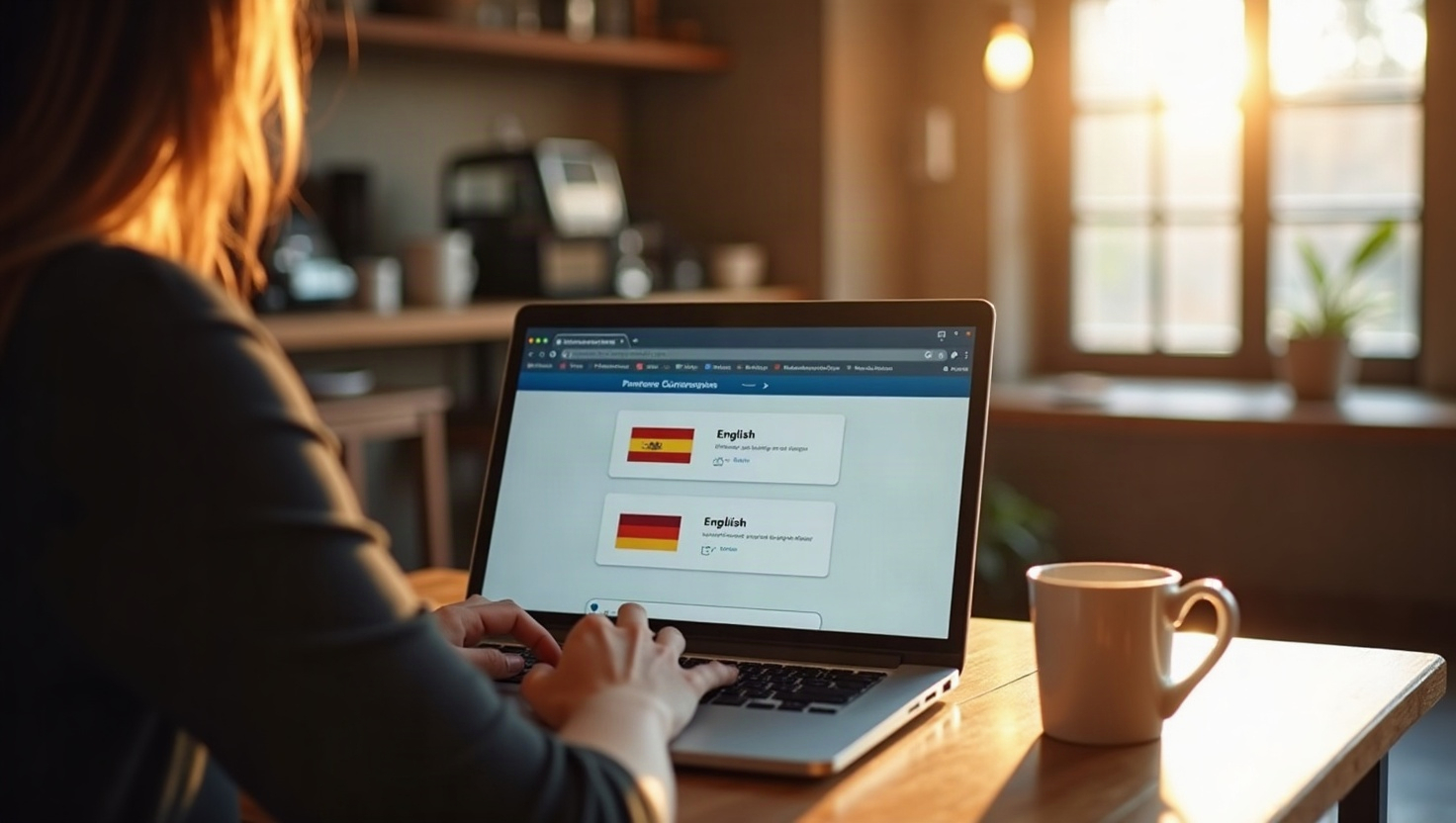
Once your site is available in multiple languages, you need to let visitors choose their preferred language. Two common options are flag icons and dropdown menus.
- Flags are visual and intuitive, but they can be problematic. For example, a Spanish speaker might be from Spain, Mexico, or Argentina—each with a different flag. Using a flag can unintentionally exclude or offend some users.
- Dropdowns are more precise and inclusive. They can list languages as text (e.g., "Español", "Français", "Deutsch") and often include a globe icon. Dropdowns are also easier to localize later if you add more languages.
Most AI builders, including webceke, let you add a language switcher with just a few clicks. You can place it in the header, footer, or even as a floating button on mobile.
Step-by-Step: Launching a Bilingual Site with webceke in Under an Hour
Let's walk through a real example. Say you run a small bakery in Miami and want to attract Spanish-speaking customers. Here's how you'd do it with webceke:
- Sign up and describe your business in one sentence: "We're a family-owned bakery in Miami offering fresh Cuban pastries and custom cakes."
- Let the AI generate your site—it creates a complete multi-page website with homepage, about, menu, and contact sections.
- Go to Settings > Languages and click "Add Language." Choose Spanish.
- Click "Translate Automatically"—within seconds, all your content is translated.
- Review the Spanish version by clicking the language switcher. Edit any phrases that don't sound natural (e.g., change "pastel" to "tarta" if that's more common in your area).
- Add a language switcher to your header. Choose a dropdown with a globe icon for clarity.
- Preview the site on mobile and desktop. Make sure the layout doesn't break due to longer Spanish words.
- Publish—your bilingual site is live.
Total time: about 45 minutes, including coffee breaks. No translators, no developers, no stress.
Ready to Go Global (or Local)?
Adding multiple languages to your website doesn't have to be a headache. With AI website builders, you can reach new customers and build trust in minutes. If you're ready to see how easy it can be, try webceke today—you'll be surprised how fast you can launch a beautiful, multilingual site for your small business.