Online Booking System for Small Business Websites: The 2025 No-Code Guide
webceke
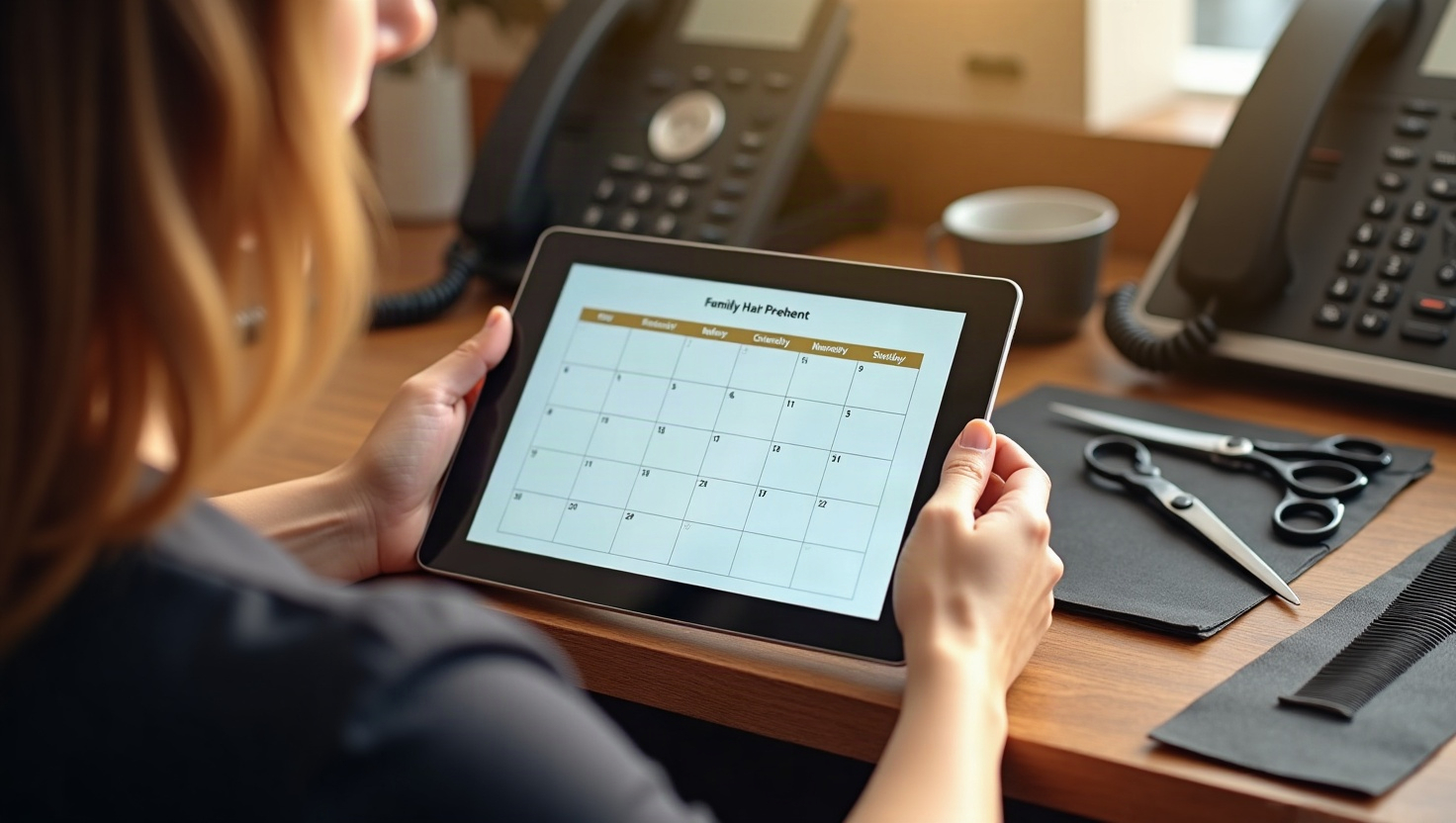
If you run a salon, tutor, or repair shop, every call that goes to voicemail after hours is a booking you never see. An online booking system for your small business website fixes that: clients pick a time, get a confirmation, and show up. Here's how to set one up without writing code or hiring a developer.
Why phone-only booking costs you real money
Most service businesses lose 20–40% of after-hours inquiries simply because no one answers. Customers who want a haircut at 9 p.m., a math tutor on a Sunday, or a plumber on a holiday won't call back — they'll book with whoever lets them click a time slot.
A booking widget on your site also cuts the admin drag: no more back-and-forth texts to confirm Thursday at 3, no more double-checking the paper calendar, and no more no-shows because someone forgot.
Compare the no-code booking options
You don't need custom development. The realistic choices for a small service site are:
- All-in-one schedulers (Calendly, Acuity, Setmore, Square Appointments). Fastest to launch. Free tiers cover solo operators; paid plans add payments, intake forms, and multiple staff. Acuity and Square suit salons with several chairs; Calendly is the cleanest for tutors and consultants.
- Industry tools (Vagaro, Mindbody, Jobber, Housecall Pro). Built for specific trades — they handle POS, client records, and dispatch, but they cost more and can feel heavy if you just need bookings.
- WordPress plugins (Amelia, Bookly). Good if your site already runs on WordPress, but you own updates, security, and hosting.
- Native AI site builders. Platforms like webceke generate your pages and let you drop in a booking section or embed a third-party scheduler directly, so the whole site and the calendar live in one place.
Pick based on three questions: How many staff or resources do you book? Do you need to take deposits? Do you want the booking page to match your site's look? If you answered "one or two," "no," and "yes," a free scheduler embed is enough.
Embed the scheduler into your site
Every major tool gives you either an embed code or a direct link. Here's the practical path:
- In your booking tool, find Embed or Share and copy the inline script or iframe.
- Open your site editor, add a Custom HTML / Embed block where you want the calendar to appear.
- Paste the code, save, and preview on mobile — most clients book from a phone.
- If your builder doesn't support raw HTML, use the link option instead and point a button to your scheduler URL.
With webceke, you describe your business in a sentence, it builds your service pages, and you add the booking block the same way you'd add a photo — no theme files, no plugin conflicts.
Sync Google Calendar and automate reminders
This is the step most people skip, and it's where the real time savings live.
- Two-way sync. Connect your booking tool to Google Calendar so new appointments appear instantly and busy blocks you create elsewhere stop new bookings. Calendly, Acuity, and Setmore all support this on free or low tiers.
- Buffer time. Add 10–15 minutes between appointments for cleanups, travel, or notes.
- Confirmation email. Send it immediately with the date, time, address, and a reschedule link.
- Reminder sequence. A text 24 hours before and another 2 hours before cuts no-shows dramatically. SMS beats email for same-day reminders.
- Cancellation policy. State it in the confirmation so late cancellations aren't a surprise.
Put the booking button where people actually click
A scheduler no one finds is a scheduler that doesn't work. Place entry points at every natural decision moment:
- Top-right header button on every page — visible without scrolling.
- Above the fold on the homepage, next to your main service promise.
- On each service page, right after the price or package details.
- In the footer and in your Google Business Profile link.
- As a sticky bar on mobile, where thumb reach is easiest.
Use action text, not "Submit": Book a haircut, Schedule your lesson, Request a repair visit. Keep the button one color that contrasts with the page.
Prevent double-bookings before they happen
Double-bookings usually come from three gaps: two calendars that don't talk, manual entries, and overlapping staff schedules. Close them by:
- Enabling real-time availability so the widget checks your calendar at the moment of booking.
- Assigning each service to a specific staff member or resource, not a shared pool.
- Setting capacity limits per slot (one chair, one tutor, one van).
- Requiring deposits for high-value appointments to discourage duplicate holds.
- Reviewing your time zone settings if you serve remote clients.
Test it yourself: book the same slot twice from two devices. If both go through, your sync isn't live yet.
Start taking bookings tonight
You don't need a developer, a plugin license, or a weekend of setup. Choose a scheduler, embed it, sync your calendar, and put the button where clients already look. webceke can build the full site around it — service pages, pricing, contact form, and your booking block — from a single sentence about your business. [Try webceke free] and turn your website into a 24/7 receptionist.